Events shows everything your church has planned and lets you claim your spot in a few taps. RSVPing gives organizers a real headcount for food, childcare, and seating, and it gives you a confirmation instead of hoping someone wrote your name down. Use it when you hear about a gathering and want the details, or when a registration is required before you can attend.
Browse events
- From Home, tap More.
- Under Church Life, tap Events.
- Browse the event list, then tap an event to open its details.
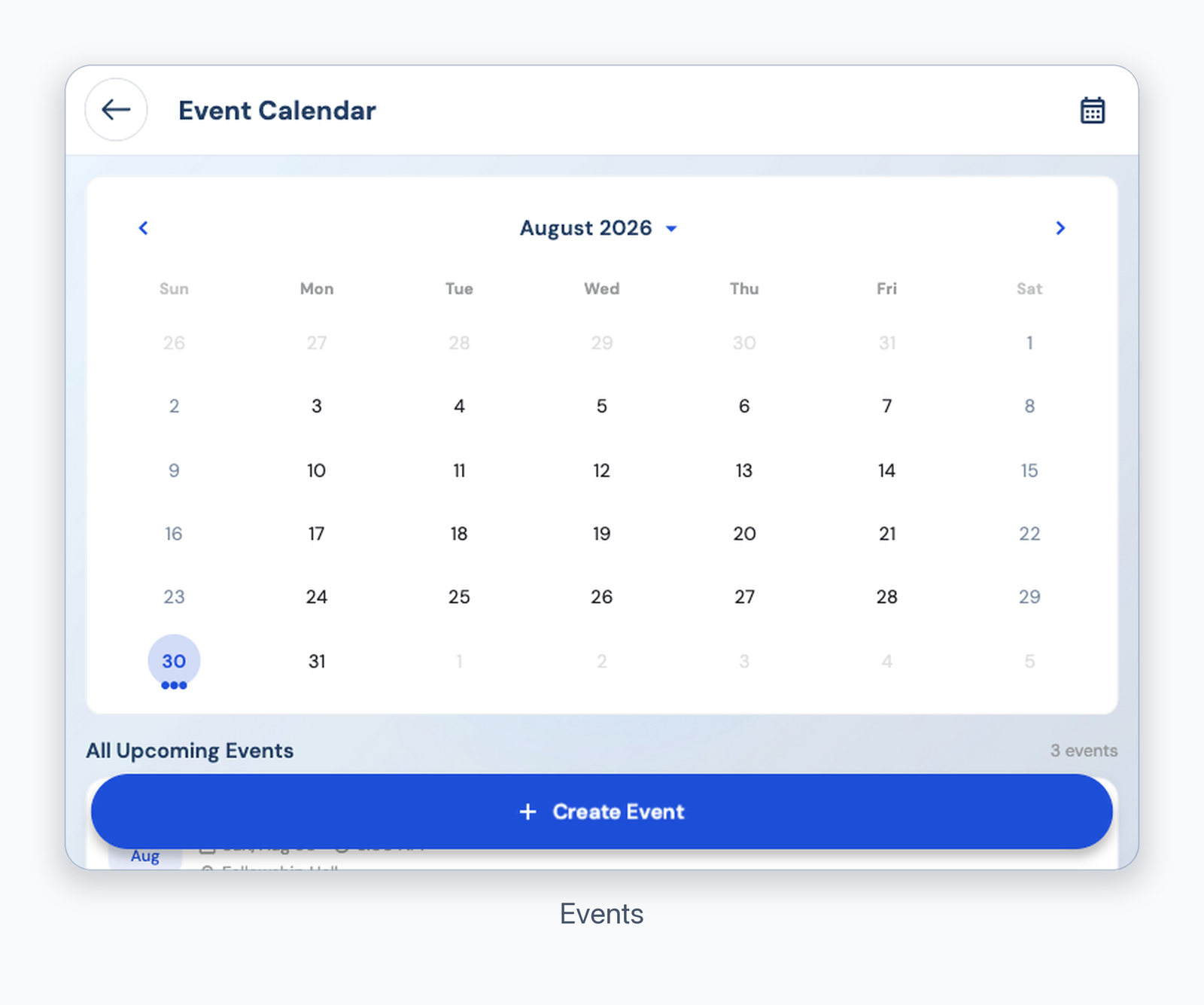
Events list
RSVP
- On the event details screen, find the registration or RSVP action.
- Choose your response and any requested attendee details.
- Submit the response and check for a confirmation.
You can also tap Calendar in the bottom navigation to see church events by date. RSVP options appear only when the organizer enabled them.
Was this article helpful?
That’s Great!
Thank you for your feedback
Sorry! We couldn't be helpful
Thank you for your feedback
Feedback sent
We appreciate your effort and will try to fix the article