Notification settings let you decide how your church reaches you instead of taking everything or nothing. You might want push alerts for urgent news but email for the rest, or you might want to go quiet overnight. Adjust these when the app feels noisy, when you are missing messages you care about, or when you would rather not be woken by a late announcement.
You can turn push, email, and SMS on or off separately.
Steps
- In the app header, tap your profile avatar (your initials or photo on the right).

Profile avatar in the header
- Tap Profile & Account.
- Under Account Preferences, tap Manage Notifications.
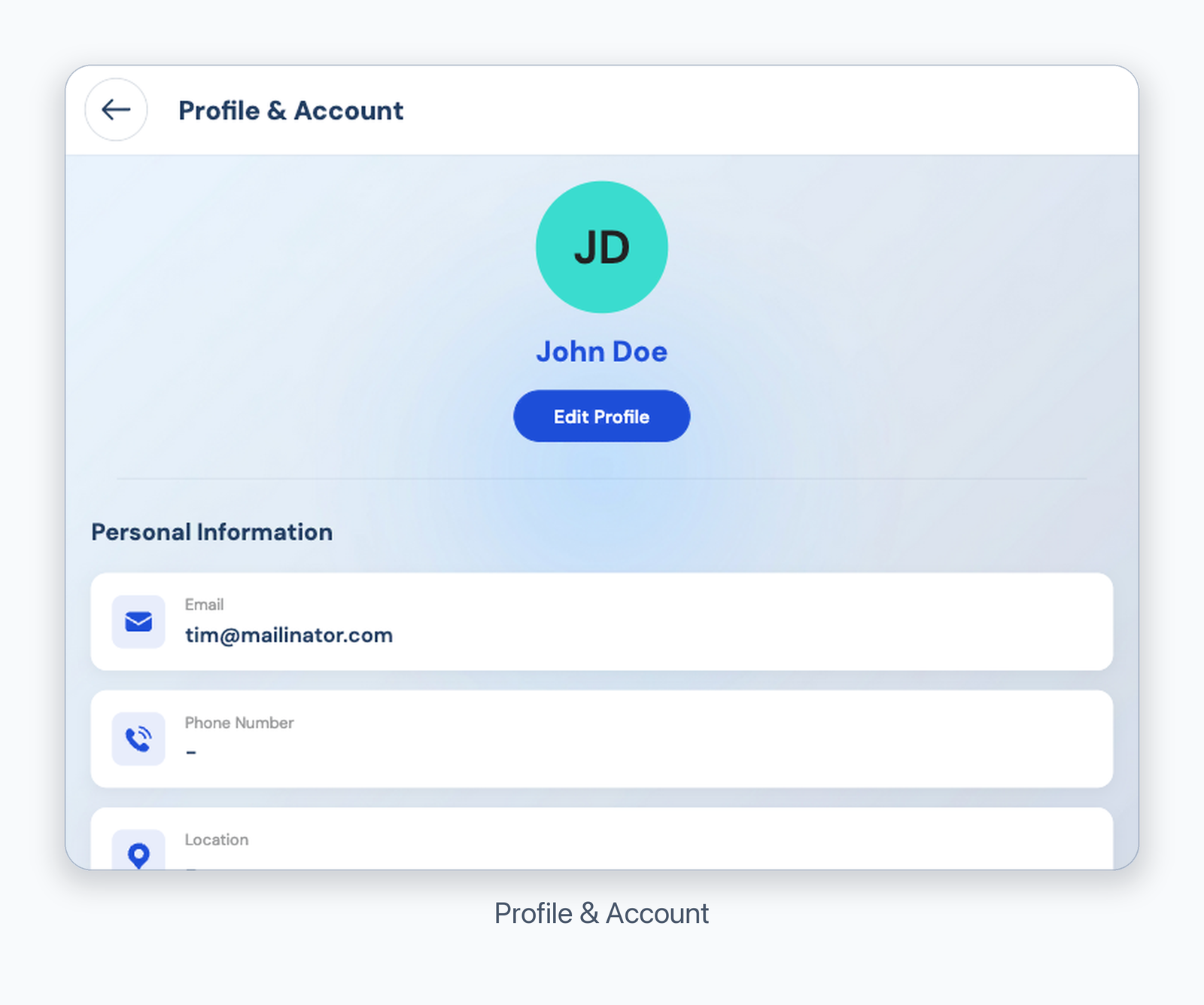
Account Preferences with Manage Notifications
- Under Channels, turn Email, Push Notifications, or SMS / Text on or off.
- Optional: tap Set next to Quiet Hours to pause alerts overnight.
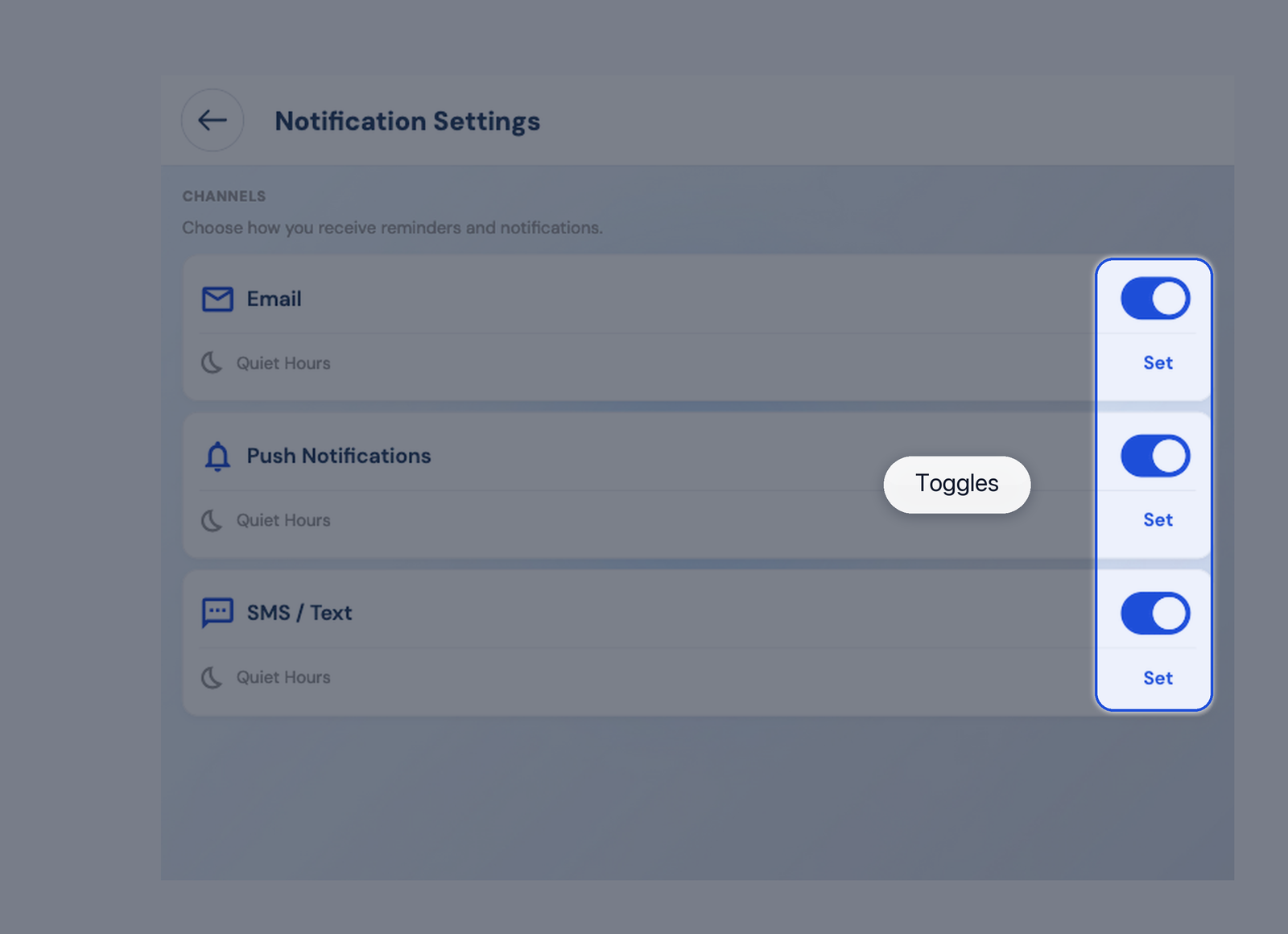
Notification channel toggles
What success looks like
The channel switch stays in the state you chose. Your church may still send legally required email such as giving receipts.
Was this article helpful?
That’s Great!
Thank you for your feedback
Sorry! We couldn't be helpful
Thank you for your feedback
Feedback sent
We appreciate your effort and will try to fix the article