To-Dos keep follow-ups, serving reminders, and personal ministry tasks in one place so nothing sits only in your head or a scattered notes app. Each task can carry a due date and a priority, so you can tell at a glance what needs attention today. Use it when you leave a meeting with commitments, when a leader asks you to follow up with someone, or when you simply want a running list you will actually check. Your list is personal to your account.
Open To-Dos
- From Home, tap More in the bottom navigation.
- Under Personal Tools, tap To-Dos.
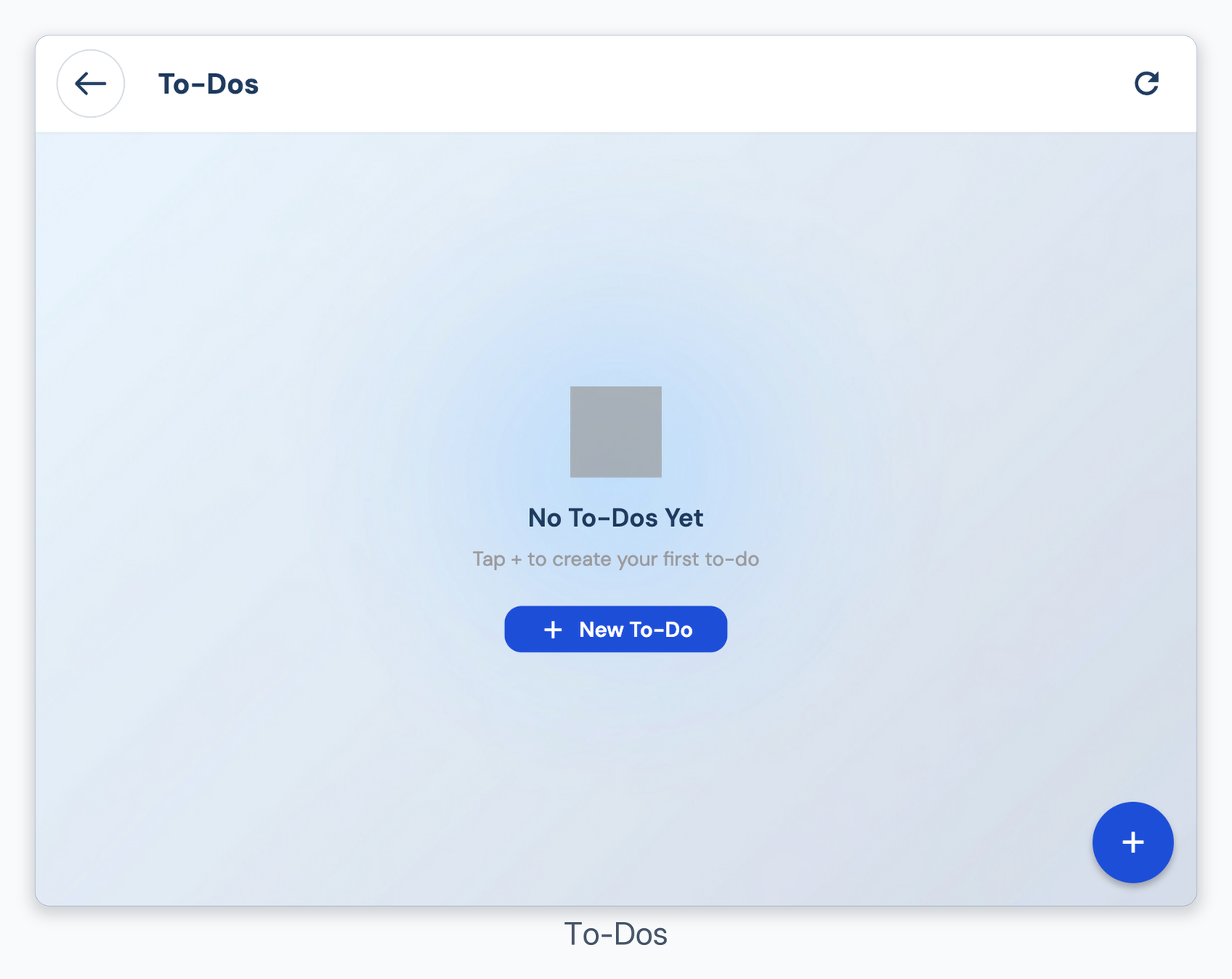
To-Dos list
Add a task
- Tap the + button.
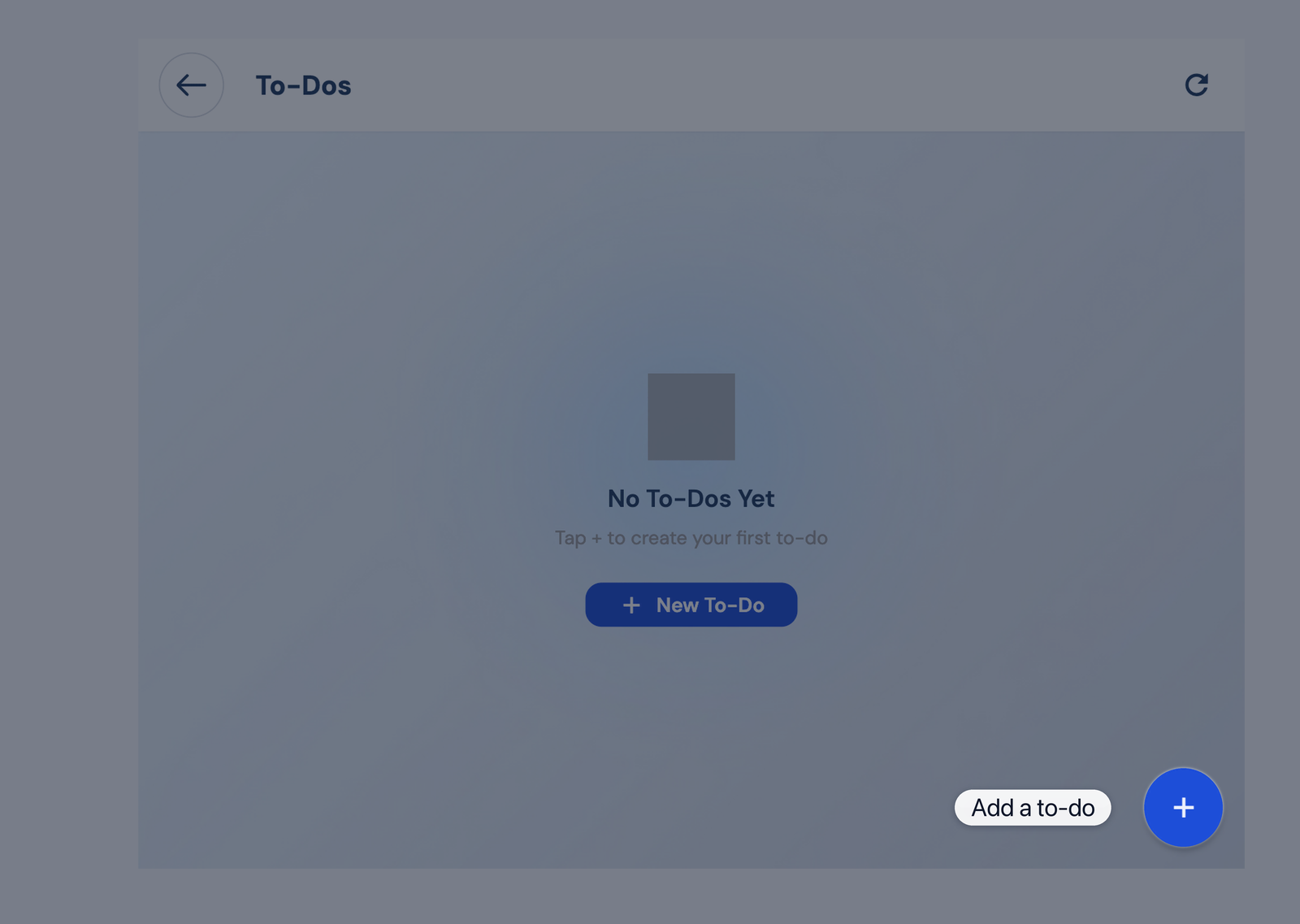
Tap + to add a To-Do
- In New To-Do, enter a Title and optional Description.
- Choose a Priority, tap Set Due Date if needed, then tap Create.
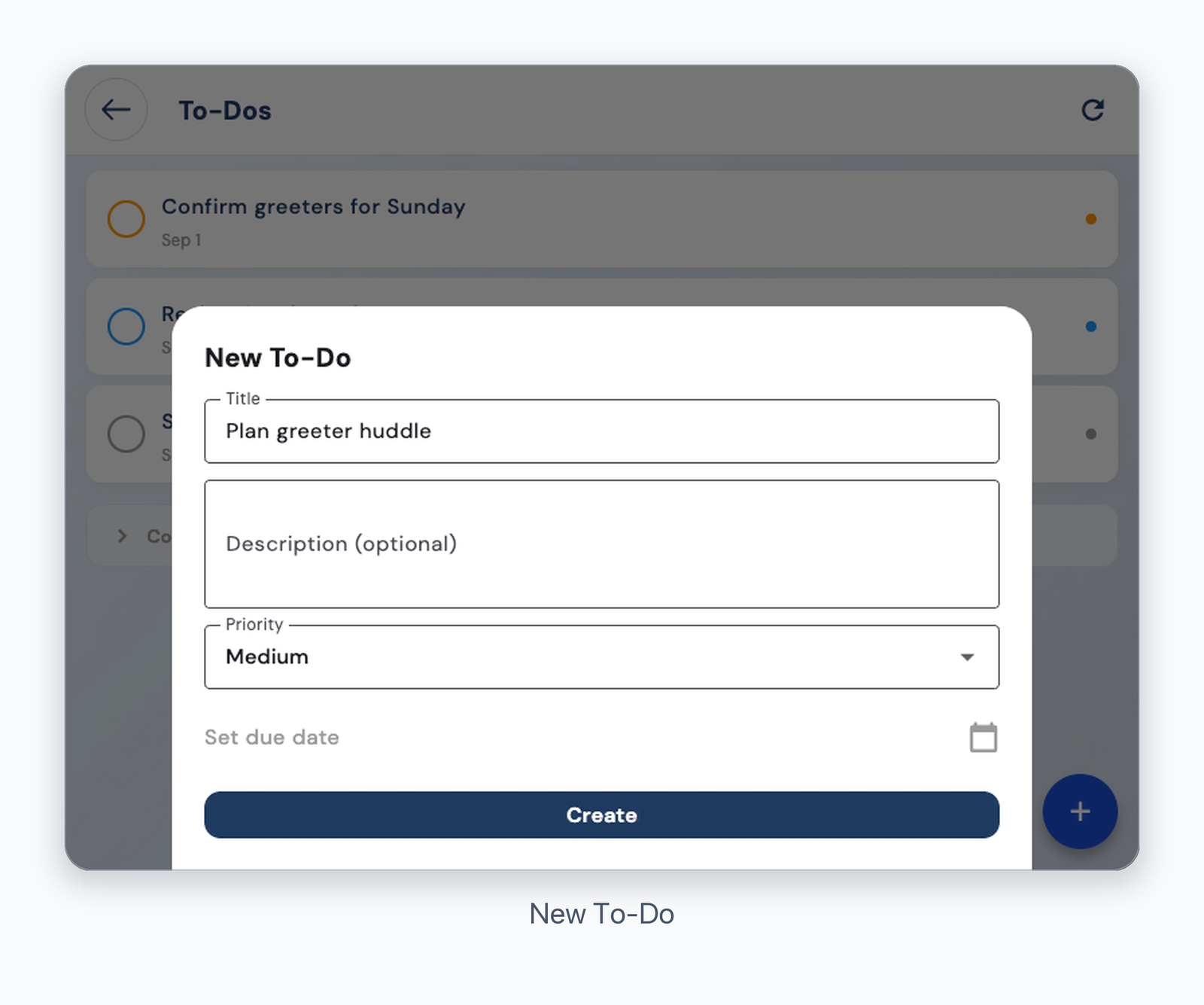
New To-Do form
Manage tasks
- Tap a task to edit it, or tap its circle to mark it complete.
- Open Completed to review finished tasks. Swipe a task left to delete it.
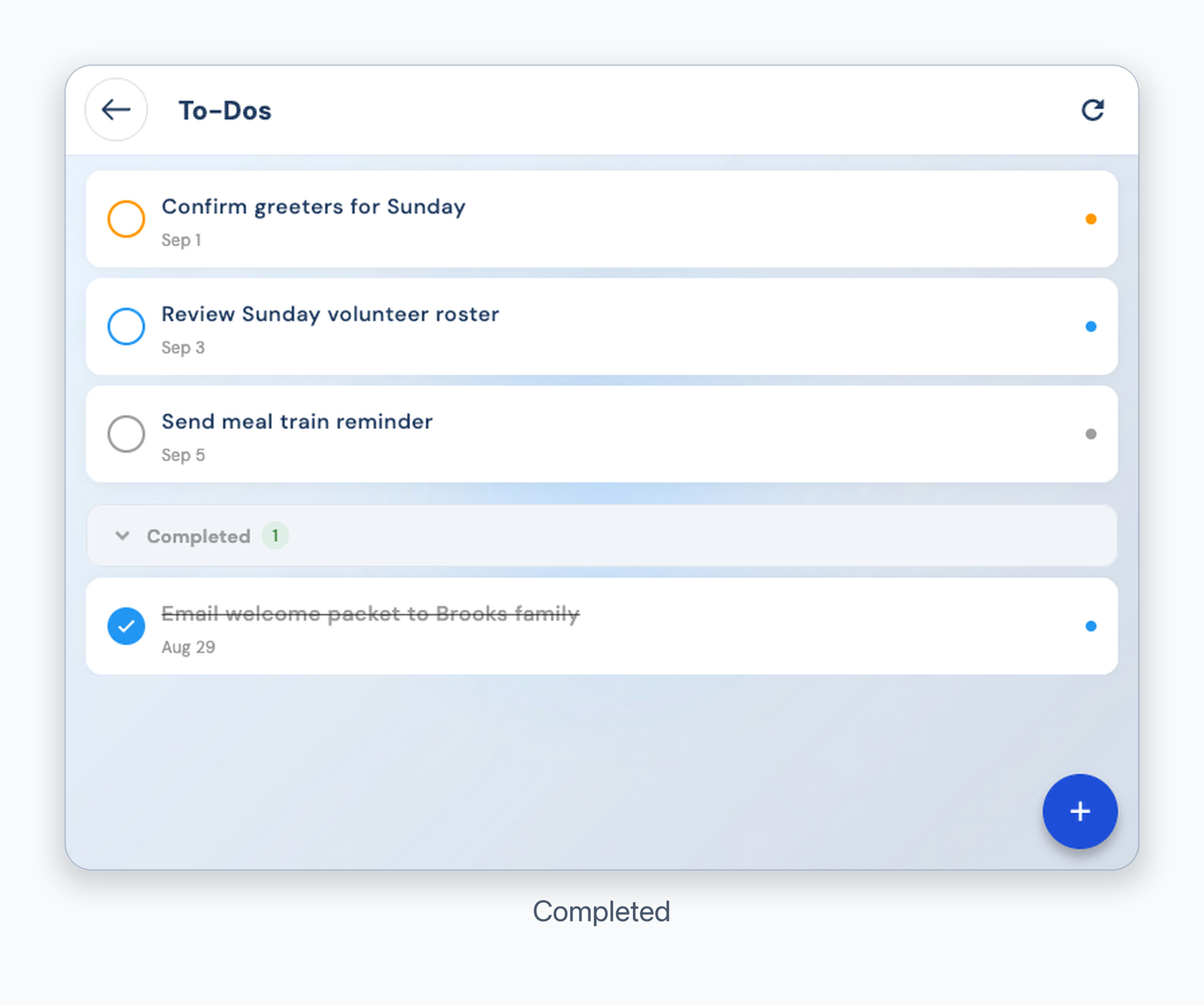
Completed tasks
Was this article helpful?
That’s Great!
Thank you for your feedback
Sorry! We couldn't be helpful
Thank you for your feedback
Feedback sent
We appreciate your effort and will try to fix the article