Kiosk Mode turns a church device into a self-serve check-in station so families can sign their kids in without waiting on a volunteer with a clipboard. It keeps the device locked to the check-in screen, which protects the rest of the app while parents use it. Set it up before doors open on Sunday or before any event where you expect a rush of arrivals.
Check-in permission may be required to see Kiosk Mode.
- From Home, tap More.
- Under Administration, tap Kiosk Mode.
- Select the check-in event or setup requested on the kiosk screen.
- Confirm the station settings, then start the kiosk.
- Keep the device on the kiosk screen while families check in.
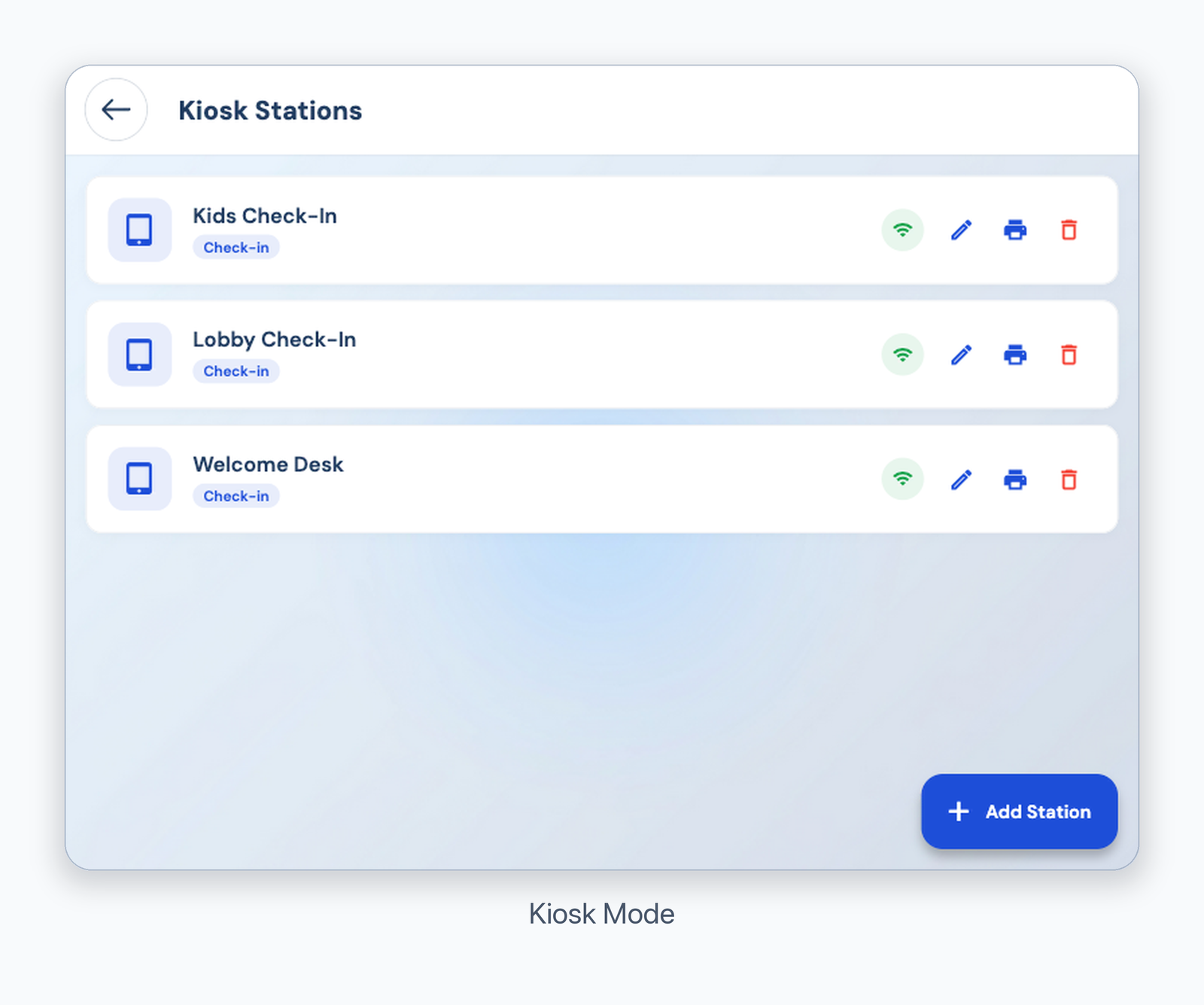
Kiosk Mode
Use a church-managed device when possible. Exit Kiosk Mode when the check-in period is finished so the device is not left unattended.
Was this article helpful?
That’s Great!
Thank you for your feedback
Sorry! We couldn't be helpful
Thank you for your feedback
Feedback sent
We appreciate your effort and will try to fix the article